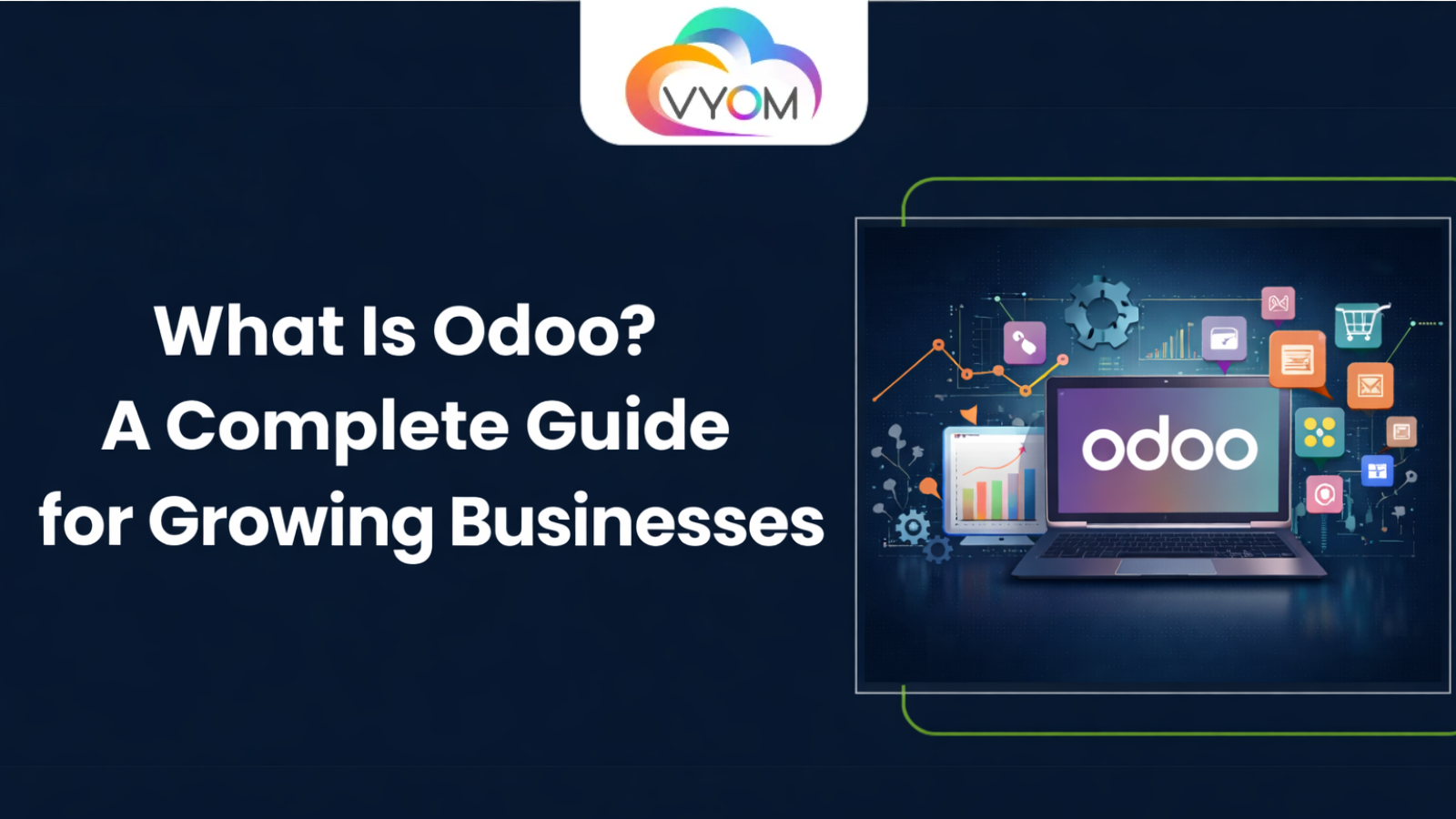
Odoo is a complete business management suite that combines CRM, accounting, inventory, eCommerce, project management, and more in one platform. Many growing businesses choose Odoo because it replaces multiple disconnected tools with a single system that can be customized as needs change. What Is Odoo is a common question for business owners researching ERP software; at its core, Odoo is an open-source ERP that works for small businesses, startups, and larger companies alike. With modular apps and flexible hosting options — including VPS or dedicated servers — Odoo can scale from a single user to hundreds of employees while keeping costs manageable and processes simple.
- What Is Odoo?
- Who can use Odoo?
- Why Businesses Choose Odoo
- Key Features of Odoo
- Odoo Modules Explained
- Benefits of Using Odoo for Growing Businesses
- Odoo Community vs Enterprise Edition
- Industries That Use Odoo
- Odoo Hosting Requirements
- Why Choose VyomCloud for Odoo Hosting
- Best Practices Before Installing Odoo
- Common Mistakes to Avoid
- Conclusion
- F&Q
- Related Reading
What Is Odoo?
Odoo is an open-source ERP (Enterprise Resource Planning) and business management software that organizes core business processes into modular applications. Unlike monolithic ERP systems, Odoo lets you install only the modules you need — for sales, accounting, inventory, HR, website, and more.
Who can use Odoo?
- Small businesses and startups that want an affordable, scalable ERP.
- Mid-size and growing companies that need customizable workflows.
- Developers who build or extend modules.
- Enterprises looking for a flexible alternative to costly legacy ERPs.
Why Businesses Choose Odoo
Businesses pick Odoo for several practical reasons:
- Easy to use: Intuitive interface and simple setup reduce adoption time.
- All-in-one platform: Multiple business functions work together in one system.
- Scalable: Add modules and users as the business grows.
- Cost-effective: Open-source base with optional paid features.
- Customizable: Developers can tailor modules and build new ones to match processes.
Key Features of Odoo
Below are the core features that make Odoo useful for many businesses:
- CRM: Track leads, opportunities, and customer interactions in one place.
- Sales: Manage quotations, orders, and invoices with sales pipelines.
- Accounting: Handle bookkeeping, tax reports, and reconciliation.
- Inventory: Real-time stock tracking, multi-warehouse support, and barcode integration.
- Purchase: Supplier management, purchase orders, and automated procurement.
- Manufacturing: Bill of Materials (BOM), work orders, and production planning.
- HR: Employee records, attendance, and document management.
- Payroll: Payroll processing, payslips, and statutory reports (where supported).
- Project Management: Task boards, timesheets, and project reporting.
- Website Builder: Drag-and-drop site editor and CMS features.
- eCommerce: Product pages, checkout, payment integration, and order management.
- Marketing Automation: Email campaigns, lead scoring, and automated workflows.
- Reporting: Dashboards, custom reports, and exportable analytics.
Odoo Modules Explained
Module | Purpose | Best For
- CRM | Manage leads and pipeline | Sales teams, small businesses
- Sales | Quotations and orders | Retail and B2B sellers
- Accounting | Financial records and reports | Finance teams, accountants
- Inventory | Stock control and logistics | Warehouses, eCommerce
- Purchase | Supplier orders and approvals | Procurement teams
- Manufacturing | Production workflows | Factories, manufacturers
- HR | Employee management | Any organization with staff
- Payroll | Payroll processing | Companies with payroll needs
- Project | Tasks and project tracking | Agencies, teams running projects
- Website | Build and edit websites | Marketing teams, online sellers
- eCommerce | Online store functionality | Retailers, brands
- Marketing | Campaigns and automation | Marketing teams
- Reporting | Business intelligence and analytics | Managers, executives
Benefits of Using Odoo for Growing Businesses
- Unified data: One database connects sales, inventory, and accounting for accurate reporting.
- Lower costs: Starting with the community edition keeps expenses down; add paid modules as needed.
- Faster setup: Prebuilt modules reduce implementation time versus custom systems.
- Flexibility: Configure workflows and screens without rewriting core software.
- Faster decision-making: Real-time dashboards and reports keep managers informed.
- Improved collaboration: Teams share the same system and information.
- Easier scaling: Add users and modules instead of migrating to new software.
- Extensible ecosystem: Thousands of community and third-party modules expand functionality.
Odoo Community vs Enterprise Edition
Feature | Community Edition | Enterprise Edition
- Licensing | Open-source, free | Paid subscription
- Support | Community support | Official Odoo support and upgrades
- Upgrades | Manual | Automated upgrades and migration help
- Extra Modules | Limited built-ins | Additional proprietary modules (studio, payroll in some regions)
- Features | Core features | Extra UX, mobile features, and enterprise-only apps
- Hosting | Self-hosted or third-party | Cloud hosting available via Odoo.sh or third-party providers
Industries That Use Odoo
- Retail: POS, inventory, eCommerce, CRM.
- Manufacturing: MRP, production planning, inventory control.
- Healthcare: Patient records, appointment scheduling, billing.
- Education: Student records, course management, billing.
- Logistics: Warehouse management, routing, tracking.
- IT Companies: Project management, invoicing, support.
- eCommerce: Product catalog, checkout, shipping integrations.
- Finance: Accounting, compliance, financial reporting.
Odoo Hosting Requirements
To run Odoo smoothly, consider the following hosting requirements:
- Fast VPS: Good for small teams or testing environments.
- Cloud Server: Scalable resources for growing businesses.
- Dedicated Server: For heavy workloads, integrations, or high traffic.
- SSD/NVMe Storage: Faster database reads/writes improve performance.
- Daily Backup: Prevent data loss and ease recovery.
- Security: Firewalls, SSL, and regular updates protect business data.
- High Uptime: Ensure continuous access to business operations.
Why Choose VyomCloud for Odoo Hosting
VyomCloud offers infrastructure and services that match Odoo’s needs without sounding promotional:
- High-performance Cloud Servers that handle Odoo workloads smoothly.
- NVMe SSD Storage for faster database and file access.
- VPS Hosting for small teams and testing.
- Dedicated Servers when you need isolated resources and consistent performance.
- High Uptime to keep business operations running.
- Strong Security with firewall and hardening options.
- Daily Backups to protect your data and support quick recovery.
- Scalable Infrastructure so you can add CPU, RAM, or storage as needed.
- Affordable Pricing to keep total cost reasonable.
- 24/7 Technical Support to resolve issues quickly when you need help.
Best Practices Before Installing Odoo
- Define business processes to map modules properly.
- Choose the right edition (Community vs Enterprise) based on features and budget.
- Plan hosting based on expected users, transactions, and integrations.
- Prepare data for migration: clean customer, product, and transaction records.
- Set up a staging environment for testing before going live.
- Create a backup and rollback plan.
- Assign an internal owner to coordinate users, training, and support.
Common Mistakes to Avoid
- Skipping requirement analysis and picking modules randomly.
- Underestimating hosting needs and choosing weak infrastructure.
- Not testing workflows in a staging environment.
- Ignoring user training, which leads to poor adoption.
- Hardcoding customizations without using standard module patterns.
- Neglecting backups and disaster recovery planning.
Conclusion
Odoo is a flexible, modular ERP and business management software that suits businesses of all sizes. It offers essential tools like CRM, accounting, inventory, and eCommerce under one platform, which helps teams work with shared data and simpler processes. Choosing the right hosting — whether VPS, cloud server, or dedicated server — matters for performance and reliability. Providers like VyomCloud offer the infrastructure and support that match Odoo’s requirements, making deployment and scaling easier. If you plan deployment, start with clear processes, proper hosting, and staged testing to get the most from Odoo.
F&Q
1. What is Odoo used for?
Odoo is used to manage business operations such as sales, CRM, inventory, accounting, HR, and eCommerce. It bundles these into modules that communicate through a single database, improving consistency and reporting across teams.
2. Is Odoo good for small businesses?
Yes. Odoo ERP for small businesses is attractive because you can start with a few modules on a VPS and expand over time. The community edition helps control costs while offering essential features.
3. What is the difference between Odoo Community and Enterprise?
Community is open-source and free, with core features. Enterprise is paid, offering extra modules, official support, automated upgrades, and some advanced UX and mobile features.
4. Can I host Odoo on a VPS?
Yes. Odoo runs well on a well-provisioned VPS for small teams. Choose NVMe or SSD storage, enough RAM and CPU, and follow optimization guides for best performance.
5. What server specs are recommended for Odoo?
For small deployments, start with 2–4 vCPUs, 4–8 GB of RAM, and an NVMe SSD. Larger installations with many users or heavy eCommerce traffic require more CPU, RAM, and often a dedicated server.
6. How long does Odoo implementation take?
Implementation time varies. Small setups can take anywhere from a few days to a few weeks. Medium to large implementations with customizations and data migration often take several weeks to months.
Related Reading
What is Paperclip? Complete Beginner Guide 2026
Paperclip App Review: Features, Benefits & Use Cases (2026)
Also Read: How to Build Automation Workflows Using n8n
Let’s Get Social:
Facebook: https://www.facebook.com/vyomcloudnetwork/
LinkedIn: https://www.linkedin.com/company/vyomcloud/
Instagram: https://www.instagram.com/vyomcloud/