- Dokploy Installation Guide for Beginners
- Introduction
- What is Dokploy?
- System Requirements for Dokploy Installation
- Step 1: Connect to Your VPS
- Step 2: Install Docker
- Step 3: Install Dokploy
- Step 4: Access the Dokploy Dashboard
- Step 5: Configure Your Domain
- Step 6: Enable SSL Certificates
- Step 7: Connect GitHub Repository
- Step 8: Configure Environment Variables
- Step 9: Deploy Your First Application
- Common Installation Issues
- Why Beginners Choose Dokploy
- Conclusion
- Related Reading
- FAQs
Dokploy Installation Guide for Beginners
Introduction
Deploying applications on your own server can seem intimidating, especially if you’re new to Docker, Linux servers, and DevOps practices. Fortunately, modern deployment platforms like Dokploy have made the process significantly easier.
Dokploy is an open-source Platform-as-a-Service (PaaS) that simplifies application deployment and server management through an intuitive web dashboard. Instead of manually configuring Docker containers, reverse proxies, SSL certificates, and deployment pipelines, Dokploy automates much of the process.
If you’re looking to host applications on your own VPS without spending weeks learning advanced DevOps concepts, this Dokploy installation guide will walk you through the complete setup process from start to finish.
What is Dokploy?
Dokploy is a self-hosted deployment platform that helps developers deploy and manage applications using Docker containers.
It provides a user-friendly interface for handling tasks such as:
- Application deployment
- Domain management
- SSL certificate configuration
- GitHub integration
- Database deployment
- Environment variable management
- Continuous deployment workflows
Because Dokploy is self-hosted, users retain full control over their infrastructure while enjoying many of the conveniences offered by managed cloud platforms.
System Requirements for Dokploy Installation
Before installing Dokploy, make sure your server meets the following requirements:
Minimum Requirements
- 2 CPU cores
- 2 GB RAM
- 20 GB storage
- Ubuntu 22.04 LTS or newer
- Public IP address
- Root or sudo access
Recommended Requirements
For production environments, consider:
- 4 CPU cores or more
- 4 GB+ RAM
- SSD storage
- Dedicated VPS or cloud server
Popular hosting providers include DigitalOcean, Vultr, Hetzner, AWS, and Linode.
Step 1: Connect to Your VPS
After purchasing your VPS, connect to the server using SSH.
ssh root@your-server-ip
Replace “your-server-ip” with your actual server IP address.
Once connected, update your operating system:
apt update && apt upgrade -y
Keeping your server updated helps improve stability and security.
Step 2: Install Docker
Dokploy relies on Docker to run applications and services.
Install Docker using the official installation script:
curl -fsSL https://get.docker.com | sh
Verify the installation:
docker --version
If Docker displays a version number, the installation has completed successfully.
Step 3: Install Dokploy
One of the reasons Dokploy has gained popularity is its simple installation process.
Run the installation command:
curl -sSL https://dokploy.com/install.sh | sh
The installer automatically downloads and configures all necessary components.
Depending on your server specifications and internet connection, the process usually takes a few minutes.
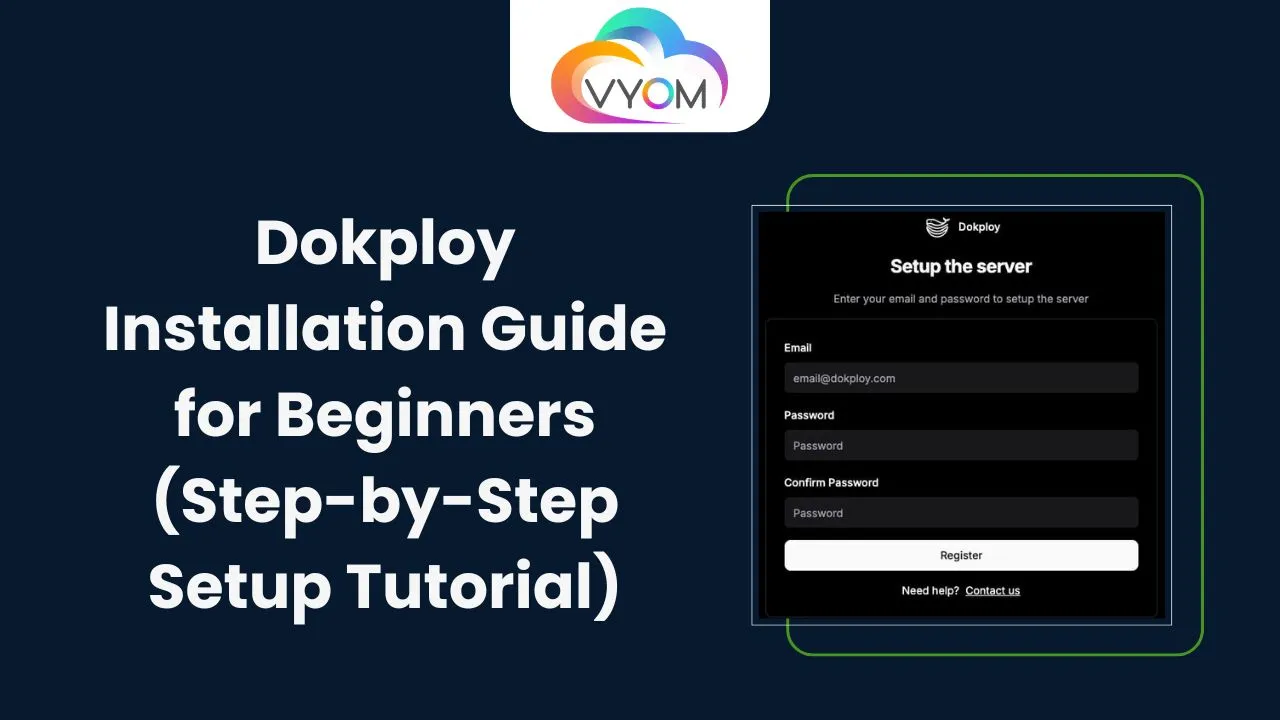
Step 4: Access the Dokploy Dashboard
Once installation is complete, open your browser and visit:
http://your-server-ip:3000
You should see the Dokploy setup screen.
Create your administrator account by providing:
- Full name
- Email address
- Password
After completing registration, you’ll gain access to the main dashboard.
Step 5: Configure Your Domain
Using a custom domain improves professionalism and allows SSL certificates to function correctly.
To configure a domain:
- Log into your domain registrar.
- Create an A Record.
- Point the domain to your server’s public IP address.
- Save the DNS changes.
DNS propagation may take a few minutes or several hours depending on your provider.
Once completed, add the domain inside the Dokploy dashboard.
Step 6: Enable SSL Certificates
Dokploy integrates with Let’s Encrypt to automatically generate SSL certificates.
After your domain is connected:
- Open your application settings.
- Assign the domain.
- Enable SSL.
- Allow Dokploy to generate the certificate automatically.
Your application will then be accessible through HTTPS.
Step 7: Connect GitHub Repository
Dokploy supports direct deployment from Git repositories.
To connect GitHub:
- Create a new project.
- Select Git Repository.
- Authorize GitHub access.
- Choose your repository.
- Select the deployment branch.
Dokploy will automatically pull the application code and prepare it for deployment.
Step 8: Configure Environment Variables
Most modern applications require configuration settings such as:
- API keys
- Database credentials
- Application secrets
- Service URLs
Navigate to the Environment Variables section and add the required values.
This keeps sensitive information separate from your source code.
Step 9: Deploy Your First Application
After configuring your repository and settings:
- Click Deploy.
- Monitor deployment logs.
- Wait for the build process to finish.
Dokploy automatically handles:
- Docker image creation
- Networking configuration
- Reverse proxy setup
- SSL certificate assignment
- Application launch
Once complete, your application will be available through the configured domain.
Common Installation Issues
Docker Installation Errors
Ensure your server has internet connectivity and sufficient disk space before installing Docker.
SSL Certificate Problems
Verify that DNS records point correctly to your server and allow time for propagation.
Deployment Failures
Review application logs to identify missing environment variables, build errors, or repository permission issues.
Dashboard Not Loading
Check that required ports are open in your firewall configuration.
Why Beginners Choose Dokploy
Dokploy has become increasingly popular because it reduces the complexity associated with application deployment.
Some key advantages include:
- Simple installation process
- Open-source licensing
- Automated SSL management
- GitHub integration
- Docker-based architecture
- User-friendly dashboard
- Lower hosting costs compared to managed platforms
For developers who want to learn deployment without becoming DevOps experts, Dokploy provides an excellent starting point.
Conclusion
Dokploy makes self-hosted application deployment accessible to developers of all skill levels. By automating infrastructure tasks such as Docker management, SSL certificates, domain configuration, and Git-based deployments, it removes many traditional barriers associated with server administration.
Whether you’re launching a personal project, startup application, or client website, following this Dokploy installation guide will help you build a reliable deployment environment quickly and efficiently.
Related Reading
What is Dokploy? Complete Beginner Guide to Self-Hosted App Deployment
Dokploy Review 2026: Pros, Cons, Features & Is It Worth It?
Also Read:- How to Build Automation Workflows Using n8n
Let’s Get Social:
Facebook: https://www.facebook.com/vyomcloudnetwork/
LinkedIn: https://www.linkedin.com/company/vyomcloud/
Instagram: https://www.instagram.com/vyomcloud/
FAQs
How do I install Dokploy on a VPS?
You can install Dokploy by first installing Docker and then running the official Dokploy installation script on your server.
Does Dokploy require Docker?
Yes. Dokploy uses Docker containers to build, deploy, and manage applications.
Which operating system is recommended for Dokploy?
Ubuntu 22.04 LTS is commonly recommended because it provides excellent compatibility and long-term support.
Is Dokploy free to use?
Yes. Dokploy is open-source and free to install. You only need to pay for the server hosting costs.
Can I deploy applications directly from GitHub?
Yes. Dokploy supports GitHub integration and automated deployments from connected repositories.
Is Dokploy suitable for beginners?
Absolutely. Dokploy is designed to simplify deployment workflows and is one of the most beginner-friendly self-hosted deployment platforms available today.